“Blocked by robots.txt” is one of the most common statuses in the Google Search Console Pages report, and one of the most misunderstood. Sometimes it is exactly what you wanted. Sometimes it is why your pricing page has not been indexed for three weeks. This guide explains what the status means, how to tell a deliberate block from an accident, how to fix the accidental ones in six steps, and the specific ways SaaS sites (app subdomains, staging environments, JavaScript frameworks) manage to block Googlebot without noticing.
What “blocked by robots.txt” means
Googlebot fetches your robots.txt before it crawls anything else. If a Disallow rule matches a URL, Googlebot does not request that URL. Search Console reports the URL as “Blocked by robots.txt” under either the “Not indexed” or, less often, the “Indexed, though blocked by robots.txt” status.
Two facts matter here:
- robots.txt controls crawling, not indexing. A URL that is blocked can still be indexed if Google finds enough links to it. It will show up with no description, because Google never read the page. That is the “Indexed, though blocked” warning.
- A blocked page cannot pass a noindex. If you want a page out of the index, Google has to crawl it to see the noindex tag. Blocking it in robots.txt prevents that. This is the single most common mistake we see on SaaS sites.
Is the block deliberate or an accident?
Run the list of blocked URLs from Search Console through this table:
| Blocked URL pattern | Usually deliberate? | Action |
|---|---|---|
| /app/, /dashboard/, /account/ | Yes | Leave blocked. Consider also removing internal links to them from public pages. |
| /api/, /graphql | Yes | Leave blocked. |
| /wp-admin/, /wp-json/ (WordPress) | Yes for wp-admin, no for wp-json if the theme relies on it | Check whether any front-end rendering calls wp-json. |
| URLs with ?utm_, ?ref=, ?sort= | Usually | Prefer canonical tags over robots blocks for parameters. |
| /blog/, /pricing/, /integrations/ | No | Accident. Fix immediately. |
| /_next/, /static/, /assets/ (JS and CSS) | No | Accident. Blocking resources breaks rendering. |
| Staging or preview hostnames | Yes, but wrong tool | Use HTTP auth or noindex, not robots.txt, so nothing leaks into the index. |
| Entire site (Disallow: /) | Only during launch | Remove the day the site goes live. Check it did not ship with the deploy. |
How to fix “blocked by robots.txt” in six steps
Step 1: Read the exact rule
Open Search Console, go to Settings, then the robots.txt report. It shows the file Google fetched, when, and whether it parsed. Then use the URL Inspection tool on one blocked URL. Under “Crawl”, it names the specific Disallow line that matched. Do not guess from the file. Rules interact (longest match wins, Allow can override Disallow) and the report tells you the actual decision.
Step 2: Confirm the live file
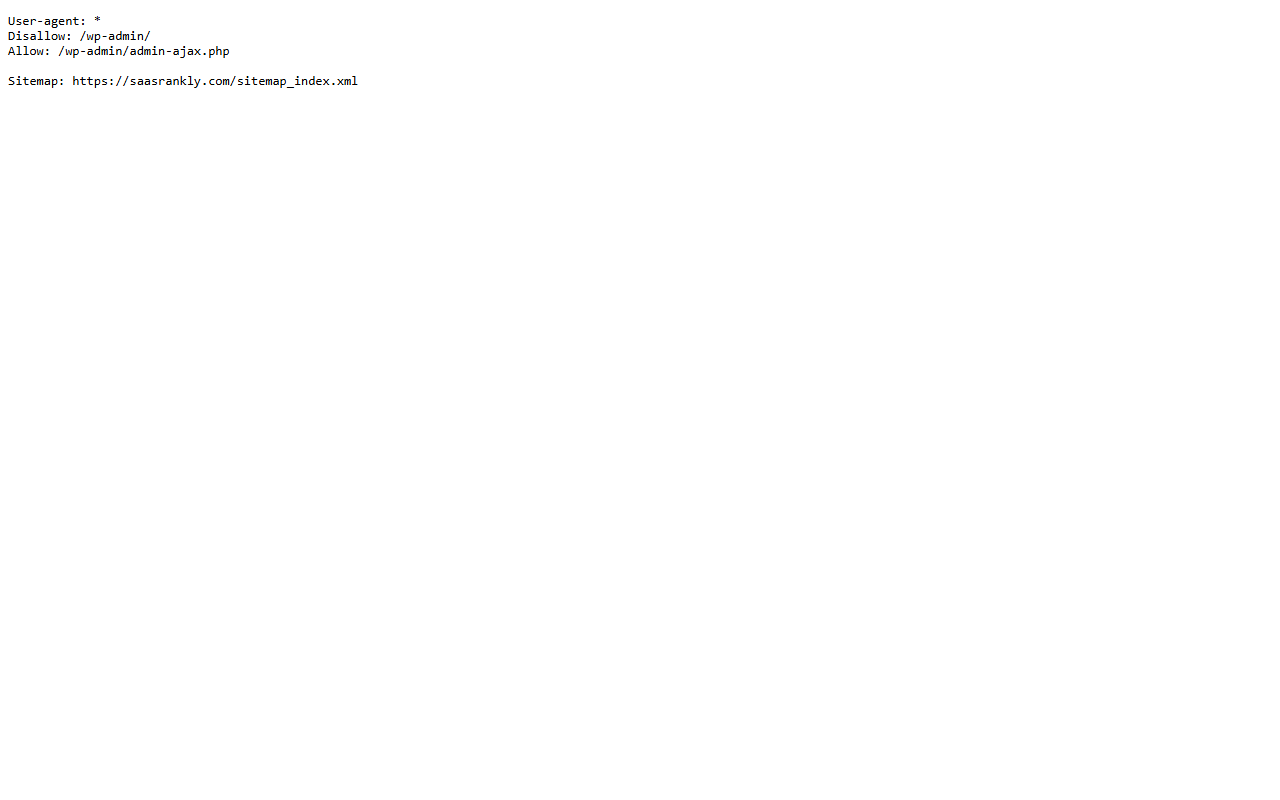
Fetch https://yourdomain.com/robots.txt in a browser and compare it with what Search Console cached. They can differ if the file is generated by the framework, cached by a CDN, or served differently on www versus non-www. Here is the file for this site as a reference for what a minimal, deliberate one looks like:
Step 3: Edit the rule
Remove or narrow the Disallow. Common corrections:
Disallow: /blogblocks every URL starting with /blog, including /blog-post-title. UseDisallow: /blog/drafts/with the trailing slash if you only meant a subfolder.Disallow: /*?blocks every URL with a query string, which on many SaaS sites includes paginated docs and filtered integration directories. Replace with specific parameters:Disallow: /*?utm_.- If you must block a folder but need one file inside it crawled, add an Allow line:
Allow: /app/public-page.html.
Never block CSS, JavaScript or image folders. Google renders pages, and blocked resources make it render an empty page, which is worse than any crawl budget saving.
Step 4: Handle noindex separately
If the goal was to keep the page out of Google, do it with a noindex meta tag or X-Robots-Tag header, and make sure the page is not blocked in robots.txt so Google can see that tag. For staging environments use HTTP authentication so nothing is fetched at all.
Step 5: Deploy and test
Push the change, purge the CDN cache for /robots.txt, then fetch the file again in a browser and confirm the new content. In Search Console’s robots.txt report, click “Request a recrawl” so Google picks it up quickly. Google normally refreshes robots.txt within 24 hours anyway.
Step 6: Validate and resubmit
Back in the Pages report, open the “Blocked by robots.txt” row and click “Validate fix”. Then resubmit your sitemap. Before you do, run it through our free sitemap checker: it fetches each URL and reports status codes, noindex tags and canonical mismatches, so you will see immediately whether the previously blocked URLs now return 200 and are crawlable.
SaaS-specific ways to block Googlebot by accident
Next.js, Nuxt and other frameworks generating robots.txt
Many frameworks generate robots.txt from a config file, and the default for non-production environments is Disallow: /. If the environment variable is wrong on the production build, the whole site is blocked. Add a deploy check that fetches /robots.txt and fails the build if it contains Disallow: / on a production hostname.
The app subdomain and the marketing site sharing a file
If app.yourdomain.com and www.yourdomain.com are served by the same origin, they may share one robots.txt. A rule meant for the app can block the marketing site. Each hostname needs its own file.
Cloudflare and WAF rules
A bot-fighting rule that challenges Googlebot does not produce a “blocked by robots.txt” status, but it produces the same outcome: pages not indexed. If the robots.txt looks clean and pages still are not crawled, check the WAF logs for Googlebot’s IP ranges. Our SaaS indexing problems guide covers the other non-robots causes.
Docs and help centres on a vendor subdomain
Help centres hosted by third parties (Intercom, Zendesk, GitBook) ship their own robots.txt. Some block search pages, some block everything until you flip a setting. Inspect a docs URL in Search Console the same way you would your own.
When “blocked by robots.txt” is correct and you should leave it
Do not treat every row in the report as an error. Logged-in app routes, internal search results, API endpoints and infinite calendar or filter combinations are all reasonable things to block. The test is simple: would you want this URL to appear in Google with a title and description? If no, and the URL is not already indexed, leaving the block is fine. If no, but the URL is already indexed, you need to unblock it, add noindex, wait for Google to drop it, and only then re-block if you want to save crawl budget.
Preventing it next time
- Version control robots.txt and require review on changes.
- Add a production smoke test that fetches /robots.txt and /sitemap.xml and checks key URLs are allowed.
- Monitor the Search Console Pages report weekly. A jump in “Blocked by robots.txt” the week after a deploy is a deploy problem.
- Keep the file short. The longer it gets, the more likely a broad prefix rule catches something it should not.
The full list of crawl and render checks is in our technical SEO checklist for SaaS.
How to test a robots.txt rule before you deploy
Most “blocked by robots.txt” incidents are caused by a rule that looked harmless in review. Test the file before it ships:
- Search Console robots.txt report. It does not test hypothetical files, but it shows how Google parsed the current one, including syntax errors and lines it ignored.
- Google’s open-source robots.txt parser. Google publishes the same C++ library Googlebot uses. Build it, feed it your draft file and a list of your top 50 URLs, and it prints ALLOWED or DISALLOWED for each. This is the only test that uses Google’s exact matching rules.
- A quick curl check after deploy. Fetch the file with the Googlebot user agent string to make sure your CDN or WAF is not serving a different version to bots than to browsers.
- Third-party testers. Several free web tools simulate the Googlebot rules against a pasted file. They are convenient but not authoritative, so use them for drafts and the Google parser for the final check.
Blocked by robots.txt versus the other crawl statuses
The Pages report has several statuses that look similar and need different fixes. Knowing which one you are looking at saves a day of debugging.
| Status | What it means | Fix |
|---|---|---|
| Blocked by robots.txt | Googlebot did not fetch the URL because a Disallow rule matched | Edit the rule as described above |
| Excluded by noindex tag | Googlebot fetched the page and found a noindex | Remove the tag if you want it indexed |
| Crawled, currently not indexed | Googlebot fetched it and chose not to index it | Quality and internal linking problem, not a robots.txt problem |
| Discovered, currently not indexed | Google knows the URL but has not crawled it yet | Crawl budget or server response time; check nothing is blocked |
| Blocked due to access forbidden (403) | Server or WAF refused Googlebot | Firewall rule, not robots.txt |
| Blocked due to unauthorized request (401) | Page requires login | Expected for app routes; remove links to them from public pages |
If your blocked URLs are moving between these statuses week to week, something in the deploy pipeline is rewriting the file. Lock it down in version control before touching anything else.
Quick recap: blocked by robots.txt
- “Blocked by robots.txt” means Googlebot did not fetch the URL because a Disallow rule matched. It controls crawling, not indexing.
- Deliberate blocks (app, API, admin) are fine. Accidental blocks (blog, pricing, JS and CSS folders) need fixing.
- Find the exact rule with URL Inspection and the robots.txt report, then confirm the live file matches.
- Never use robots.txt to keep a page out of the index. Use noindex, and make sure the page is crawlable so Google can see it.
- After fixing, request a recrawl, validate the fix, and re-check your sitemap URLs return 200.
- Framework defaults, shared subdomain files and WAF rules are the usual SaaS-specific causes of pages blocked by robots.txt.
FAQ
What does “blocked by robots.txt” mean in Search Console?
A Disallow rule in your robots.txt file matched the URL, so Googlebot did not crawl it. The page may still be indexed without a description if Google found links to it.
How do I fix “indexed, though blocked by robots.txt”?
Decide whether you want the page indexed. If yes, remove the Disallow rule. If no, remove the rule, add a noindex tag, wait for Google to drop the page, then optionally re-add the block.
How long does Google take to notice a robots.txt change?
Usually within 24 hours. Requesting a recrawl in the Search Console robots.txt report speeds it up, and the Pages report may take days to reflect the change.
Can robots.txt block a page from being indexed?
No. It only stops crawling. Use a noindex meta tag or X-Robots-Tag header for indexing control.
Should I block CSS and JavaScript in robots.txt?
Never. Google renders pages, and blocked resources can cause the rendered page to be empty, which harms rankings far more than any crawl budget benefit.
Why is my whole site blocked by robots.txt after a deploy?
Most frameworks default to Disallow: / for non-production environments. A wrong environment variable on the production build ships that file live. Add a deploy check for it.