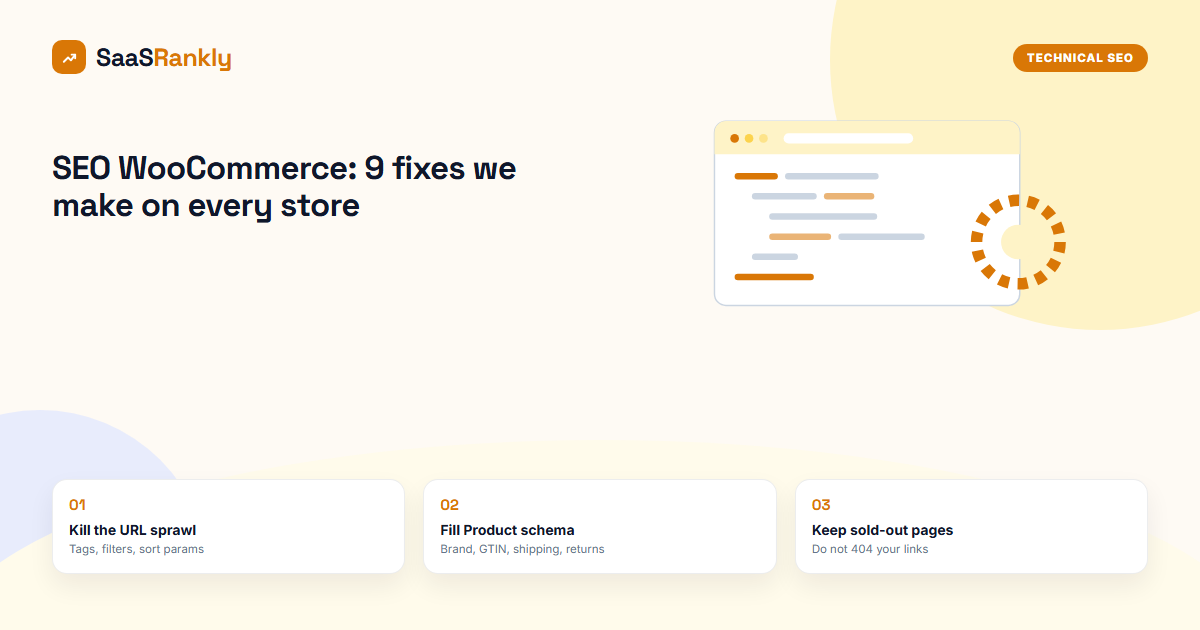
Most advice on seo woocommerce starts with “install a plugin”. That is step four, not step one. A fresh WooCommerce install ships with a handful of defaults that quietly work against you: a /product/ base in every URL, filter and sort parameters that spawn thousands of crawlable pages, thin tag archives, and product schema that is missing the fields Google wants for merchant listings. Fix those first and the plugin has something decent to work with.
We look at a lot of WooCommerce sites that sit next to a SaaS product: a store selling templates, hardware add-ons, courses or annual licences. The same nine problems show up on almost every one. This guide walks through them in the order we fix them, with the settings we actually use.
Why seo woocommerce needs its own checklist
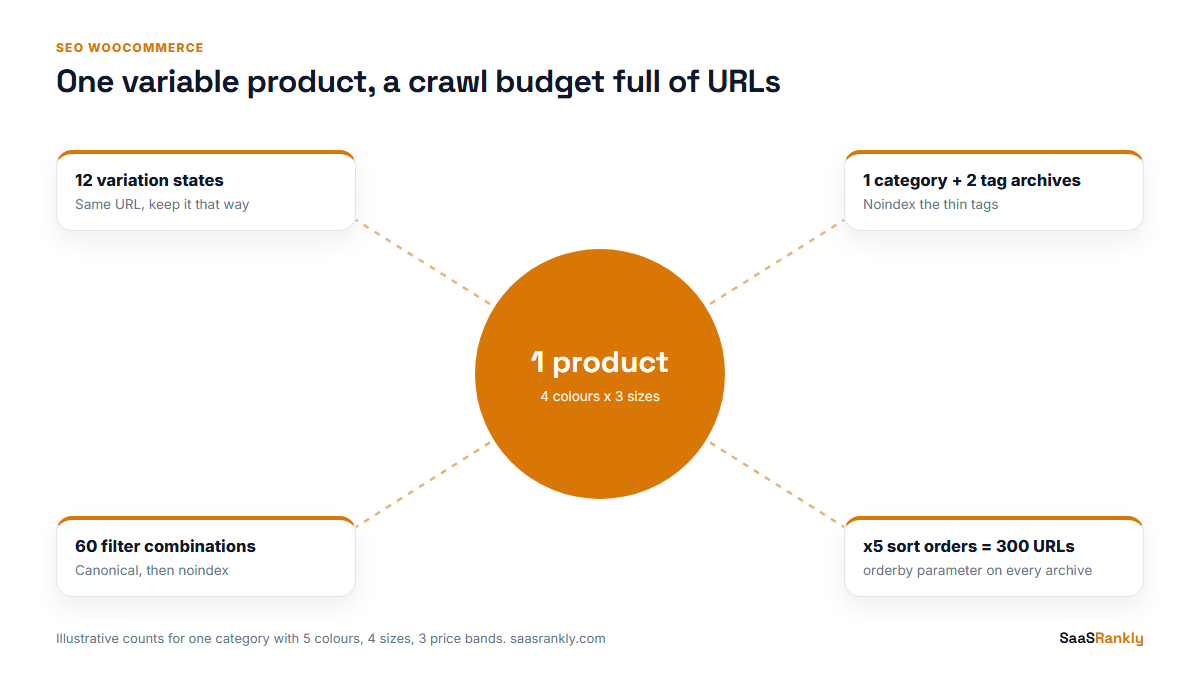
WooCommerce is a plugin on top of WordPress, so it inherits all the normal WordPress SEO work: titles, meta descriptions, a sitemap, clean internal links. What it adds is a product catalogue, and catalogues create URLs faster than anyone writes content for them. One product with four colours and three sizes can generate a product URL, twelve variation states, a category URL, two tag URLs and a dozen filtered versions of each archive.
Google does not punish that. It just spends its crawl on the wrong pages, picks its own canonical, and leaves your best category page sitting in “Discovered, currently not indexed” for weeks. If you run a SaaS marketing site next to the store, you feel it on the main site too, because both share one crawl budget and one domain reputation. We covered the SaaS side of this in our technical SEO for SaaS guide; the store side is below.
SEO WooCommerce defaults we change on day one
This is the table we run through before touching content. Each row is a default that ships with WooCommerce or WordPress, what it does, and what we change it to.
| Default | What it causes | What we set instead |
|---|---|---|
Product base /product/ |
Long, repetitive URLs; no category context | Keep a short base like /shop/ on new stores; on old stores leave it alone rather than redirect everything |
| Product tags enabled and indexable | Hundreds of thin archive pages with 1 to 3 products each | Noindex tag archives, or remove tags that nobody uses |
Sorting parameter ?orderby= |
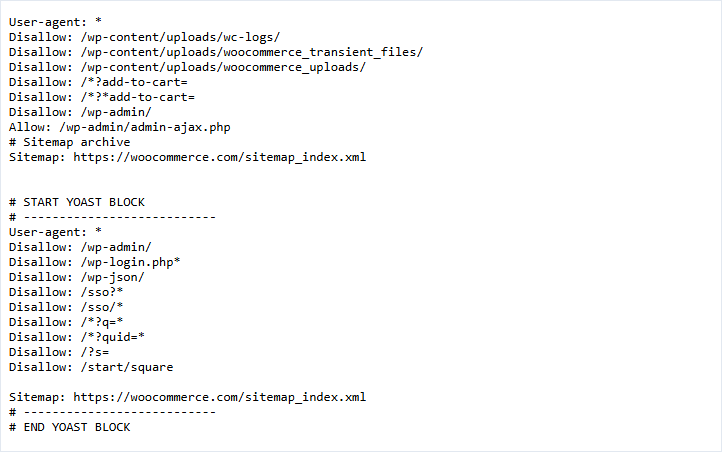
Every archive duplicated four or five times | Canonical to the clean archive, disallow the parameter in robots.txt once canonicals are live |
Layered nav filters ?filter_color= |
Combinatorial URL explosion | Noindex filtered views; only index a filter that has real search demand as its own category |
| Cart, checkout, my-account pages | Crawled and sometimes indexed | Noindex, and keep them out of the sitemap |
| Basic Product schema from WooCommerce | Missing brand, GTIN, shipping and return fields | Fill the gaps through your SEO plugin or a small snippet |
| Out-of-stock products hidden | Pages 404 or vanish from archives, links break | Keep the page live with an “out of stock” note and related products |
None of these take more than an afternoon. The one we see teams get wrong most is the product base. Changing it on a store that already ranks means redirecting every product URL, and we have watched stores lose four to six weeks of traffic doing it for a cosmetic gain. If the store is more than a few months old and already indexed, leave the base as it is.
Filter and sort URLs: the biggest crawl leak
Faceted navigation is where WooCommerce stores bleed crawl budget. A category with 5 colour options, 4 sizes and 3 price bands already produces 60 filter combinations, before sorting. Add the orderby parameter with its 5 values and you are at 300 URLs for one category page.
Our rule is simple. A filtered view gets indexed only if people search for that exact combination and you would be happy to write a proper intro for it. “Black running shoes” might earn its own category. “Black, size 9, under $80, sorted by newest” never will. We go further on filter rules, category intros and pagination in our post on ecommerce category page SEO.
- Make sure every filtered and sorted URL has a canonical pointing at the clean category URL. Most SEO plugins do this by default now; check the page source to be sure. Our notes on canonical tags cover the template bugs that break this.
- Add
noindex, followto filtered views if Google keeps indexing them despite the canonical. The canonical is a hint; noindex is a directive. - Only after both are in place, consider blocking the parameters in robots.txt. Block too early and Google can never see the canonical or the noindex, so the URLs stay indexed with no snippet.
- Turn the handful of filters with real demand into proper subcategories with their own copy.
Product pages: the seo woocommerce work that moves rankings
Product pages on most stores reuse the manufacturer description word for word. Fifty other shops have the same text. Google picks one of you to rank, and it is usually not the smallest store.
The fix is not a 1,500-word essay under every product. It is 150 to 300 words that only you could write: who the product is for, what it replaces, the question customers ask support most, and one honest limitation. On a store selling Notion templates, for example, the line “does not work with the free Notion plan because it uses synced databases” did more for conversions than the entire feature list.
For titles we use a simple pattern: product name, the main attribute people search for, then the brand. Keep it under 60 characters. The meta description should mention price or a shipping promise, because those are the two things a shopper compares on the results page. Our SERP snippet preview tool shows where Google will cut it off.
Variations
Variable products are a single URL in WooCommerce, which is good. Do not create separate simple products for each colour unless each one has genuinely different search demand and different content. If you do split them, point the canonical of the minor variants at the main product.
Reviews
Product reviews feed the aggregateRating field in schema and put stars in results. Turn on verified-owner labels. Stores that import reviews from elsewhere or write them in-house are taking a risk they do not need.
Product schema for merchant listings
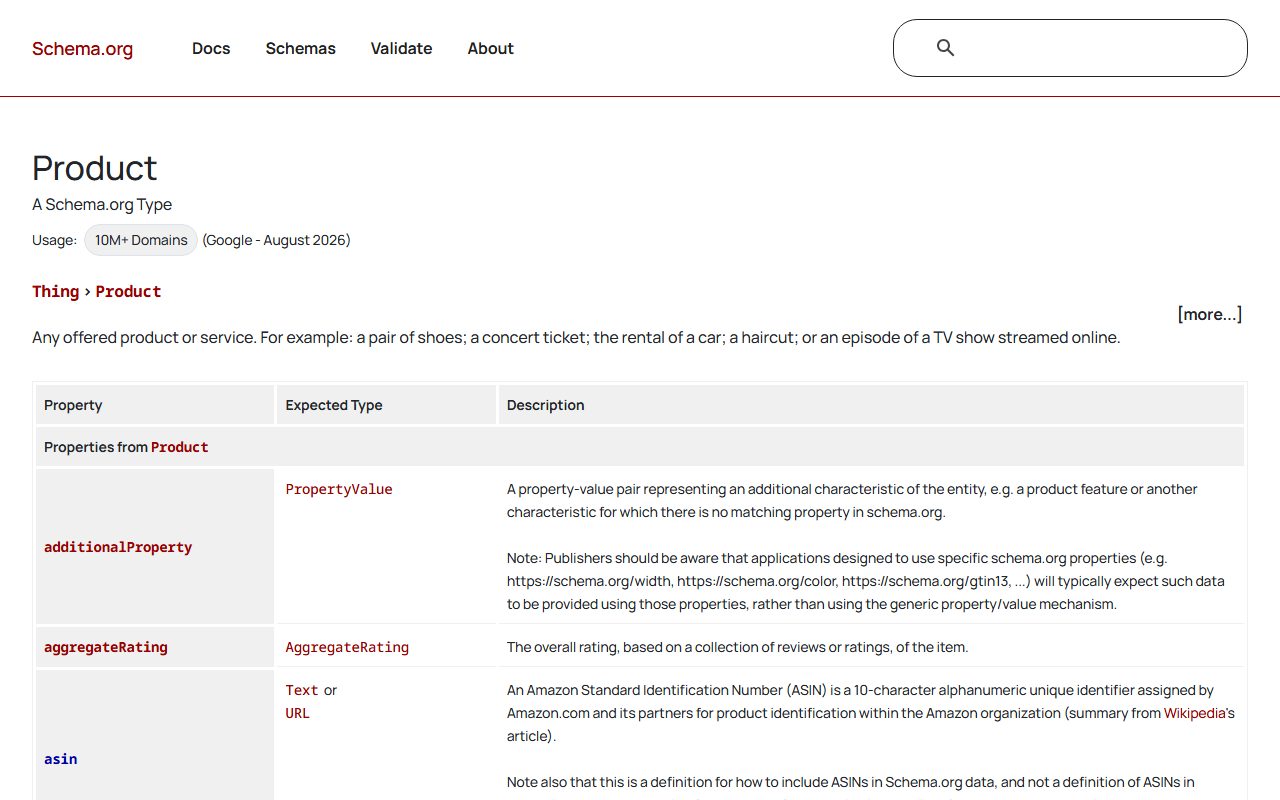
WooCommerce outputs basic Product structured data on its own: name, image, description, SKU, price and availability. Google’s merchant listing features want more than that. The fields we add most often are brand, GTIN or MPN where the product has one, shippingDetails, and hasMerchantReturnPolicy. Rank Math and Yoast (with its paid WooCommerce add-on) both fill some of these; neither fills all of them without configuration.
Run a product URL through a validator after every plugin update. We have seen a theme update strip the offers block and nobody noticed until the stars disappeared from results. Our free schema validator is fine for a quick check, and Google’s Rich Results Test is the final word.
A worked example: a template store attached to a SaaS app
Here is a composite of a real pattern we see, with illustrative numbers. A project-management SaaS runs a WooCommerce store on /shop/ selling paid templates. 140 products, 9 categories, 212 tags.
| Metric | Before | After 10 weeks |
|---|---|---|
| URLs Google had discovered under /shop/ | 6,480 | 1,120 |
| Indexed store URLs | 410 | 168 |
| Category pages indexed | 3 of 9 | 9 of 9 |
| Monthly organic clicks to /shop/ | 1,900 | 3,400 |
| Store revenue from organic | $4,100 | $7,300 |
Fewer indexed pages, more clicks. That is the usual shape. The 212 tag archives were noindexed, filter URLs were canonicalised and then noindexed, and the 9 category pages each got a 200-word intro plus internal links from the SaaS blog. The discovered count fell slowly because Google recrawls old parameter URLs for months; do not panic when the number in Search Console lags. The whole seo woocommerce cleanup took about three working days; the waiting took the rest.
Speed: the WooCommerce-specific parts
General WordPress speed advice applies to seo woocommerce too. Three things are specific to WooCommerce and worth checking:
- Cart fragments. The
wc-ajax=get_refreshed_fragmentsrequest fires on every page to update the mini cart. On a content-heavy site where most visitors never buy, disable it outside shop pages. - WooCommerce scripts on blog posts. WooCommerce loads its CSS and JS sitewide by default. Dequeue them on posts and pages that have no product blocks.
- Product image sizes. Themes often register four or five product thumbnail sizes. Regenerate them at the sizes you actually display, and serve WebP.
Caching needs care too: cart, checkout and my-account must be excluded, or customers see each other’s carts. Every serious cache plugin handles this; confirm it rather than assume.
Picking an seo woocommerce plugin
You need one SEO plugin, not two. The choice matters less than people think, because the work above is mostly settings and content. At the time of writing, our rough take:
- Rank Math: WooCommerce support in the free version covers titles, product schema basics and noindex rules. Good default for a small store.
- Yoast SEO: solid core; the WooCommerce-specific schema, product identifier checks and breadcrumb extras sit in the Yoast WooCommerce SEO add-on, listed at $178.80 a year at the time of writing.
- SEOPress or The SEO Framework: lighter, fine if you are comfortable adding a few schema fields yourself.
Whichever you choose, check the XML sitemap it generates. It should list products and categories, and leave out tags, cart pages and attachment pages. Our post on sitemap examples shows what a clean one looks like.
Out-of-stock products: the seo woocommerce mistake we see most
This one hurts stores older than a year. A product goes out of stock, someone sets it to hidden, and every backlink and internal link to it now hits a 404. Then the product comes back and starts from zero.
- Temporarily out of stock: keep the page live, show a restock date or a waitlist, and link to two or three alternatives.
- Permanently discontinued with a direct replacement: 301 to the replacement.
- Discontinued with no replacement: 301 to the category if it had links or traffic; otherwise let it return 410.
Quick recap: seo woocommerce
- Fix defaults before installing anything: tag archives, sort and filter parameters, cart and checkout indexing.
- Do not change the product base on a store that already ranks.
- Canonical, then noindex, then robots.txt for filter URLs, in that order.
- Write 150 to 300 unique words per product instead of the manufacturer text.
- Add brand, GTIN, shipping and return fields to Product schema and re-test after updates.
- Keep out-of-stock pages live; redirect only when a product is gone for good.
FAQ
Is WooCommerce good for SEO?
Yes, as long as you change a few defaults. It runs on WordPress, gives you full control of URLs, titles and content, and works with every major SEO plugin. Most ranking problems on WooCommerce stores come from settings, not the platform.
Do I need a paid plugin for seo woocommerce?
No. The free versions of Rank Math or Yoast cover titles, meta, sitemaps and basic schema. Paid add-ons help with extra schema fields and bulk editing, which matter more on catalogues of several hundred products.
Should I remove /product/ from WooCommerce URLs?
On a new store, a short base is fine. On a store that already ranks, changing it means redirecting every product, and the gain is small. We leave it.
Should WooCommerce tag pages be indexed?
Usually not. Tags tend to create thin archives with a few products each. Noindex them, or delete tags nobody browses, and put the effort into category pages.
How do I stop filter URLs being indexed?
Give every filtered view a canonical to the clean category and, if they still get indexed, add noindex. Block the parameters in robots.txt only after Google has processed those tags.
How long does WooCommerce SEO take to show results?
Settings fixes usually show up in Search Console within four to eight weeks. Content work on category and product pages takes two to four months to move rankings on a young domain.